

Workflows
Send SMS, email, push, and in-app messages when something happens, with steps that wait, branch, and collect events into one summary.
A workflow turns a platform event into messages. When Cowdi disburses a loan or receives a payment, it runs your workflow. Its steps can send an SMS, an email, a push notification, or an in-app message. They can also wait, choose a branch, or collect many events into one summary.
You build workflows in the Cowdi admin, under Operations → Workflows. This guide explains how workflows work, then builds three of them:
- Tell the borrower that the loan was disbursed
- Wait a day, and choose a message
- Send one email for several repayments
Some parts are not live yet
This guide shows the editor with three changes that are in review:
- The editor saves the draft for you, and Deploy makes a version live. Until this change is live, select Save and then Save and make live instead.
- Message text names values by path, such as
{payload.loan_amount}. - The Digest step and the email repeat block. Example 3 needs them.
How workflows work
A workflow is a graph on a canvas. The trigger is on the left. The steps follow it, from left to right.
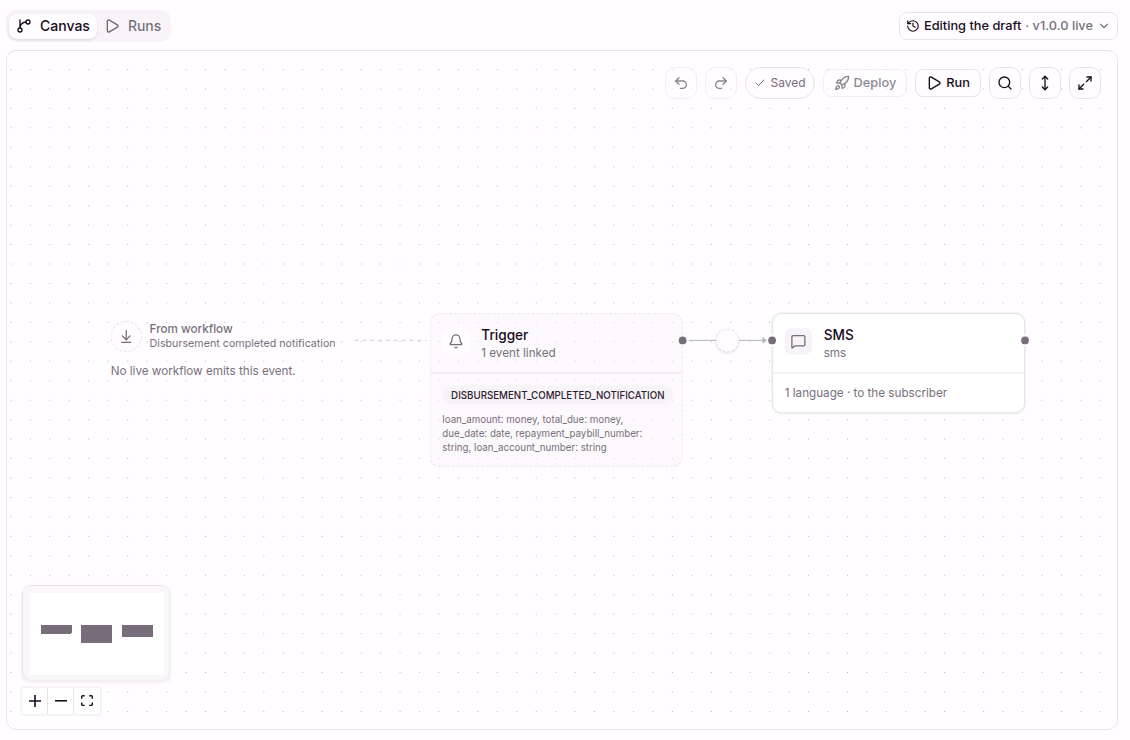
The trigger lists the linked events and the fields they carry. Each box after it is a step.
The trigger
The trigger links the workflow to one or more events, such as
DISBURSEMENT_COMPLETED_NOTIFICATION. Each event starts one run of the workflow.
The trigger also lists the payload fields: the data that the event carries, such
as loan_amount or due_date.
Each payload field has a Required switch. A workflow can require only a field that every linked event sends. If one event can leave a field out, turn Required off for it. Otherwise the editor cannot link the event, save the draft, or deploy, and the error names the field and the event.
A linked event moves its messages to the workflow
Some events already send a message without a workflow. When you link a workflow to such an event and deploy, the workflow sends the messages instead. To give the messages back, turn the link off and deploy again. The workflow must send every message the mapping used to send, including every channel. For example, a Flex Credit purchase workflow needs an SMS step, a Document step that makes the agreement PDF, and an email step that attaches it.
Steps
| Group | Step | What it does |
|---|---|---|
| Notify | SMS, Email, Push, In-app | Sends one message. An email step can attach a PDF from an earlier Document step: attachments: ["{{steps.agreement.output.document_id}}"]. The email step fails when that document is not READY, so test steps.agreement.output.status with a Condition first. An in-app step also exposes whether the recipient has seen, read, or archived it, so a later Condition can branch on that state. Its data can set severity (high, medium, or low; a critical run without it gets HIGH) and up to two buttons (primary_action_label + primary_action_redirect, and the same for secondary_action_*). |
| Wait | Delay | Waits for a length of time, or until a moment. |
| Wait | Digest | Collects the events of many runs, then continues once with all of them. Not live yet. |
| Wait | Document | Makes a PDF for the subscriber from your template and waits until it is stored. Set the document kind (only the kinds Cowdi supports), the subject_id it is about, such as {{payload.purchase_id}}, and the template. The template is HTML written like message text, with an en-KE body and optional bodies for other languages. An optional timeout, such as PT1H, limits the wait. Its output has status (READY, FAILED, or TIMED_OUT), document_id, and, when the status is READY, file_name. The step fails when the status is not READY. It needs a run that an event started and a subscriber linked to a Cowdi user, so it fails in a run you start with Run, also on a draft. To test it, trigger the linked event, or rerun a run that an event started. |
| Decide | Condition | Tests one or more cases, and runs the branch of the first case that is true. After an in-app send, you can test steps.<id>.output.seen, read, or archived. |
| Decide | Lookup | Picks a value from a table, for example a message for each account type. |
| Decide | Approval | Waits for a person to approve or reject. |
| Do | Emit event | Raises a platform event, for example a loan application decision. |
Order. A step that comes after a Delay, a Digest, a Document, a Condition, or an Approval runs only when that branch runs. Steps with nothing before them start at the same time.
Category. Every SMS, email, push, and in-app step needs a Category. The step follows the subscriber's notification preferences for that category, and the subscriber's delivery schedule. For example, a subscriber gets Promotion messages only after opting in, and cannot turn off Security, Reminder, Approval, or Billing messages. You cannot deploy a workflow while a send step has no category.
Variables
A step reads values of the run by path. There are three roots:
| Path | What it reads |
|---|---|
payload.loan_amount | A field of the event that started the run. |
subscriber.phone | The subscriber, which is the person the run is about: id, first_name, last_name, email, phone, locale, timezone, and data. A linked subscriber also has user_id and schedule. A send step without a recipient uses the linked user, or else the stored phone or email. |
steps.collect.output.event_count | The output of an earlier step. collect is the step id. An in-app send also has seen, read, archived, last_seen_at, and last_read_at. Those values update when a later step reads them. |
In message text, put the path in single braces: {payload.loan_amount}. Type
{{ to pick a value from a list. The editor shows each value as a chip. A count can
choose the word for one or for many:
{steps.collect.output.event_count, plural, one {# repayment} other {# repayments}}If a message names a value that the run does not have, the step fails and sends nothing.
In a condition or a step setting, such as a digest key, put the path in double
braces: {{payload.account_type}}.
Versions and runs
- You edit a draft. The editor saves it as you work. The events do not see the draft.
- Deploy freezes the draft as a new version and makes it live. Events then run that version. Runs that already started keep the version they started with.
- The version menu lists every version. Open one to read it. The banner above an open version has Restore into draft, so you can edit from it.
- To go back, select Make live on an earlier version in the version menu.
A run records one execution. Its status is Running, Waiting, Completed, Failed, or Cancelled. The Runs tab lists them. Open a run on the canvas to see what each step did. An operator can rerun a run to start the live version again with the same payload, subscriber, and event. A rerun reuses a stored document of the same kind and subject. If that document failed, the rerun makes it again once from the live version, so fix the template and deploy before you rerun. If the step only timed out, the document is still being made: the rerun waits for it, or uses it if it is ready, and keeps its template. A resend from the notification log does not attach files.
Example 1: loan disbursed
Send an SMS when a loan reaches the borrower.
1. Create the workflow
Open Operations → Workflows and select New workflow. Name it Loan disbursed,
add a label such as notifications, and select Create.
2. Link the event
Select the Trigger box. Under Link an event, pick
DISBURSEMENT_COMPLETED_NOTIFICATION, then select Link and add … fields. The button
shows how many fields it adds. The panel adds the event's payload fields for you.
When the workflow already has the fields, the button shows Link event.
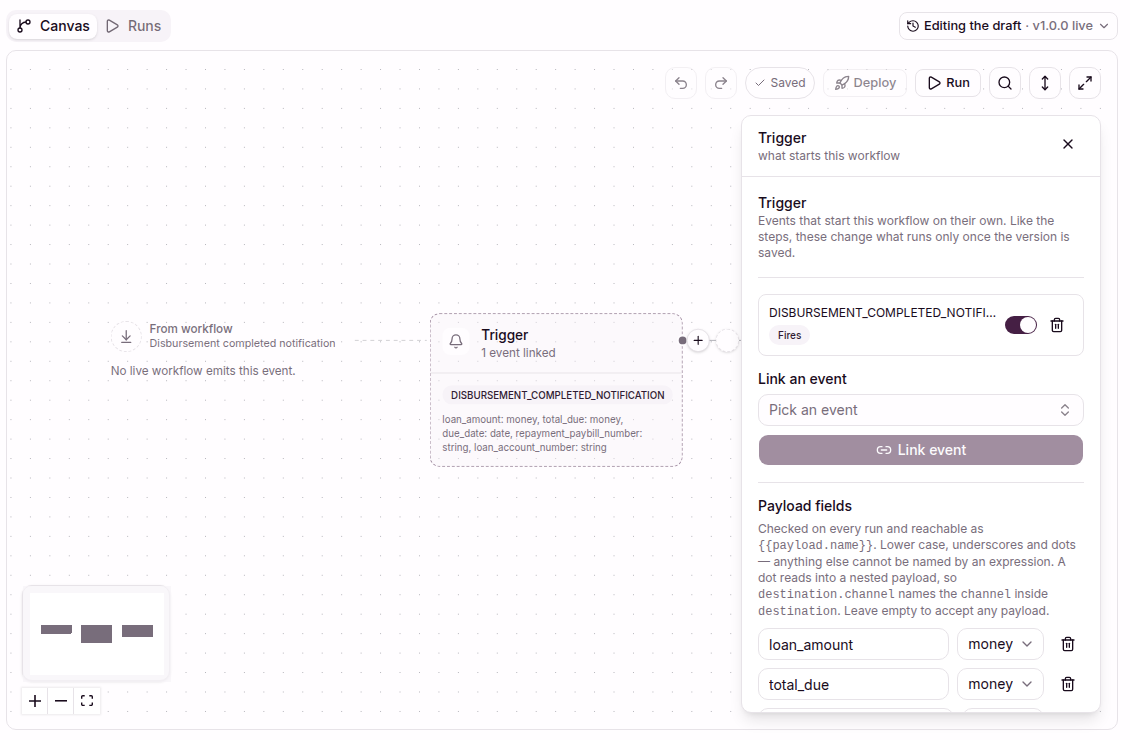
The switch turns the link on or off. Each payload field has a type, such as money or date.
3. Add the SMS
Select the + after the trigger. The Add a step panel opens. Select SMS.
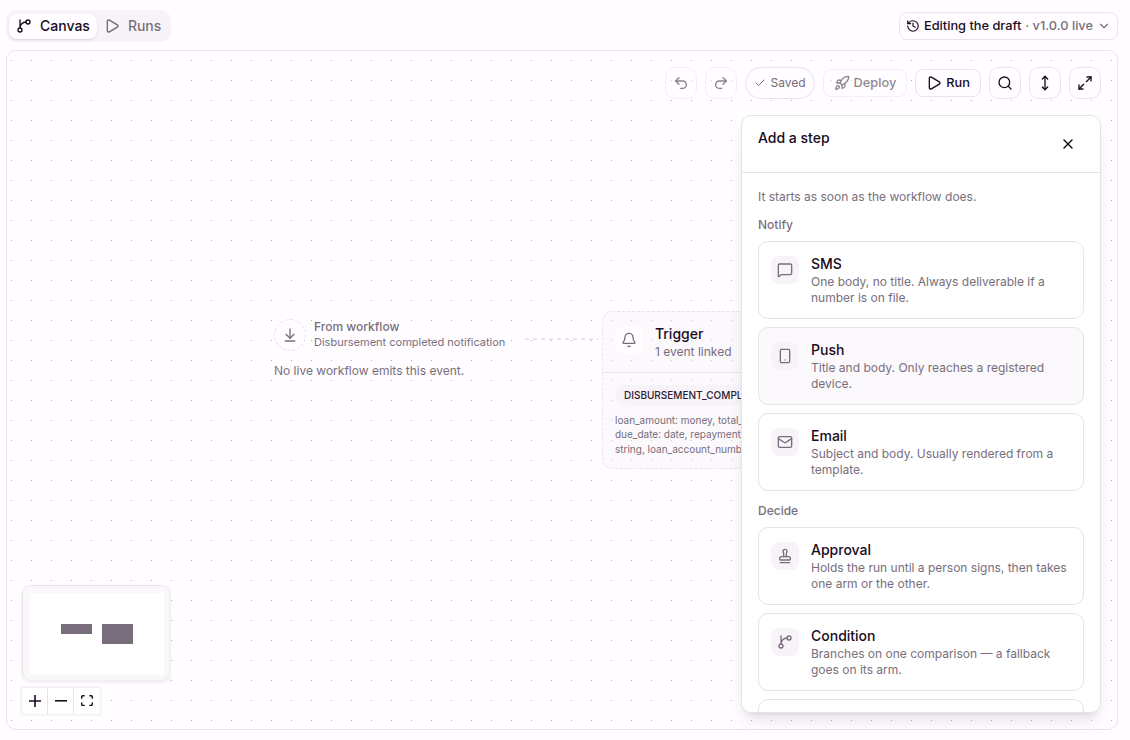
Select the box under Message to write the text. Type {{ to insert a payload field:
Your loan of {payload.loan_amount} is on its way. Pay {payload.total_due} by {payload.due_date} to paybill {payload.repayment_paybill_number}.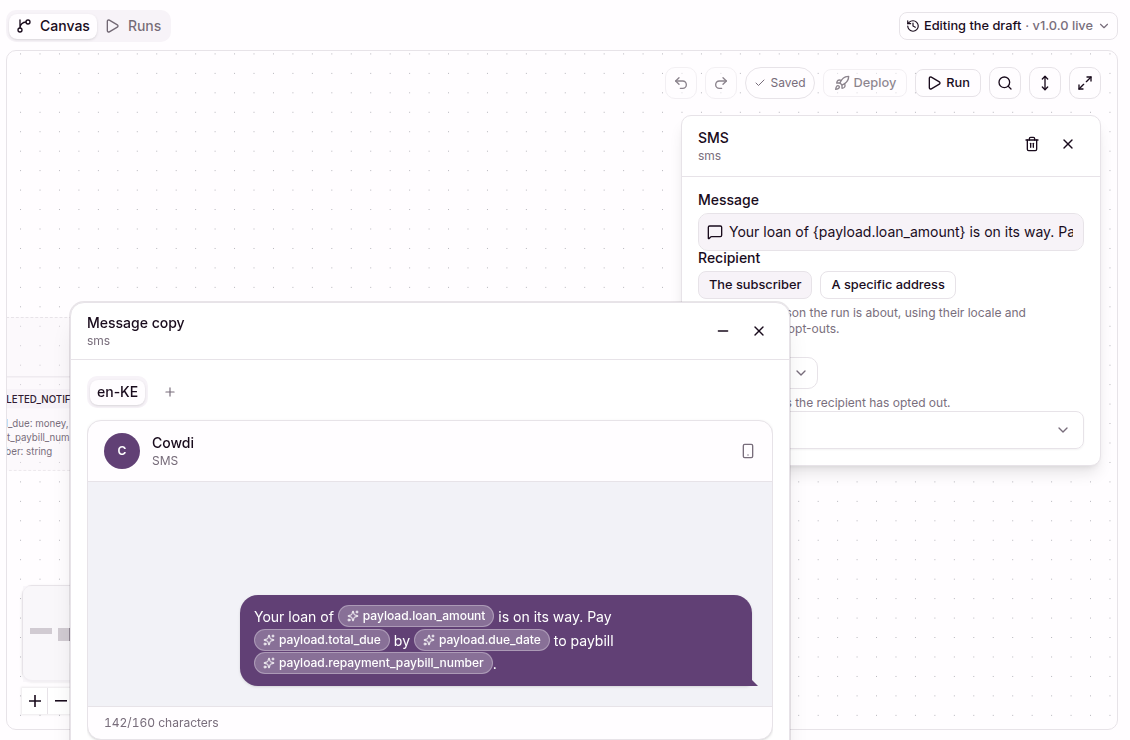
The counter shows the length of one SMS. Add a language with the + next to en-KE.
Keep Recipient on The subscriber. The SMS then goes to the borrower's phone number, in their language. Set Category to Transaction, because the SMS is about money that moved.
4. Deploy it
Select Deploy. Write what changed, such as First version. Select Major, then
select Deploy. The first version is 1.0.0.
5. Test it
Select Run. Pick the version, pick yourself as the subscriber, and fill in the payload. The run really sends the SMS, so use your own user. To test a change before you deploy it, pick Draft as the version.
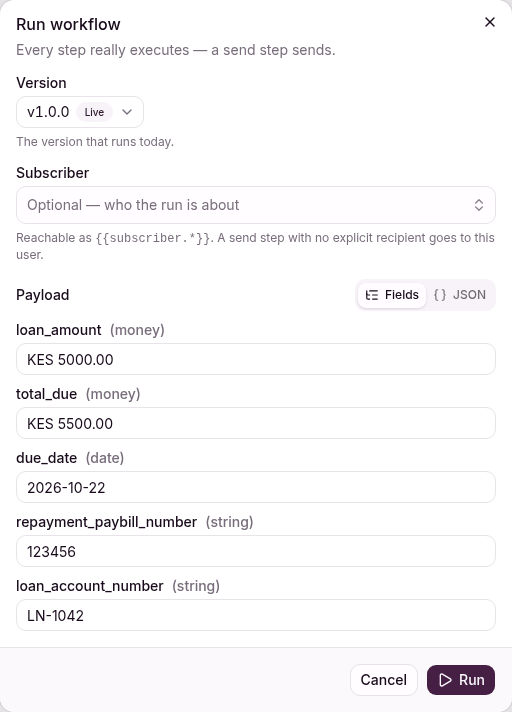
The form shows one field for each payload field. Switch to JSON to paste a payload.
The canvas then shows the run. Select a step to see What this step did: the value of each variable, and the step's output.
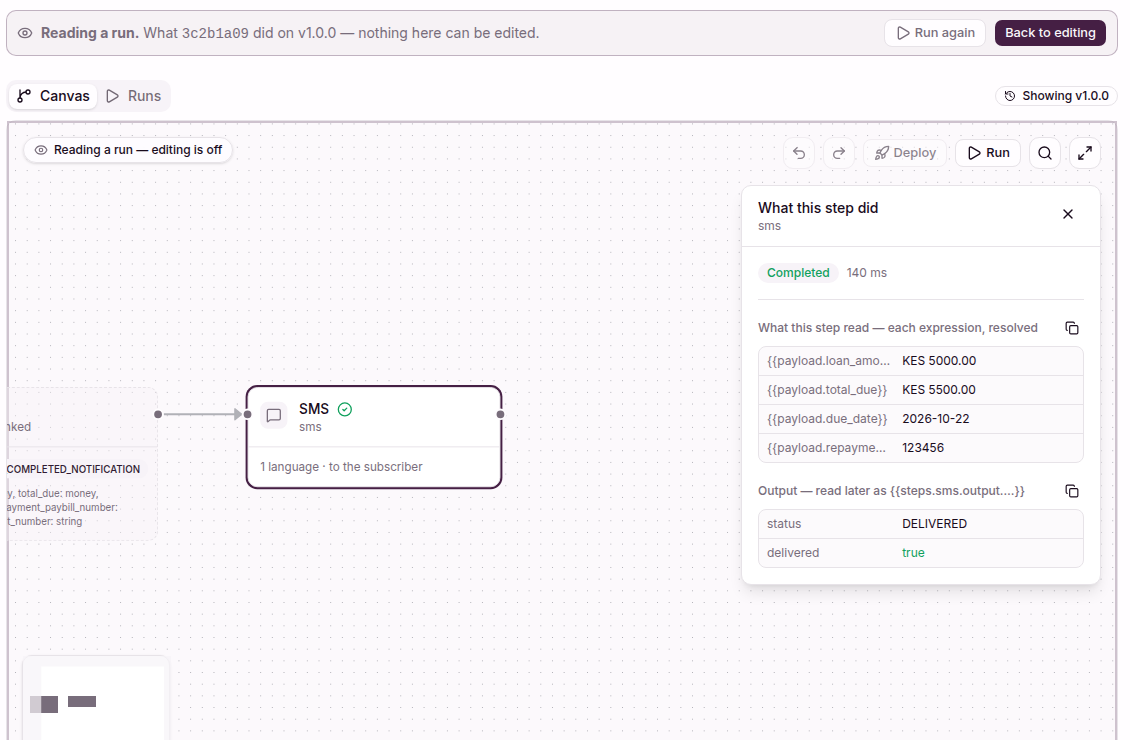
A message that did not go out shows Failed or Skipped, with the reason in its output.
From now on, every completed disbursement in your organization starts a run.
Example 2: wait and choose
Follow up a day later
Add a Delay after the SMS. Set What this waits for to A length of time, and Wait for to 1 day. Then add an Email on the delay's After the wait branch:
- Subject:
Your first payment is due on {payload.due_date} - Body:
Pay {payload.total_due} to paybill {payload.repayment_paybill_number}, account {payload.loan_account_number}. - Category: Reminder, because a payment is due.
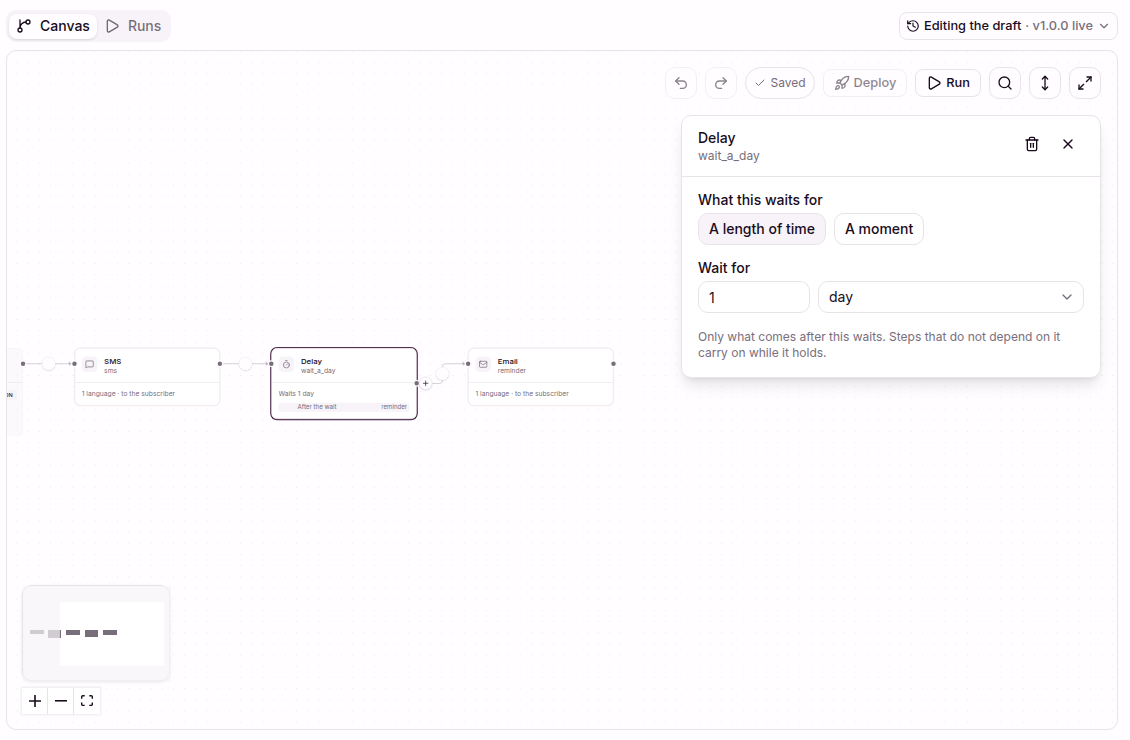
Then select Deploy. Write what changed and keep Minor. The new version is
1.1.0. The dialog shows each change since the live version.
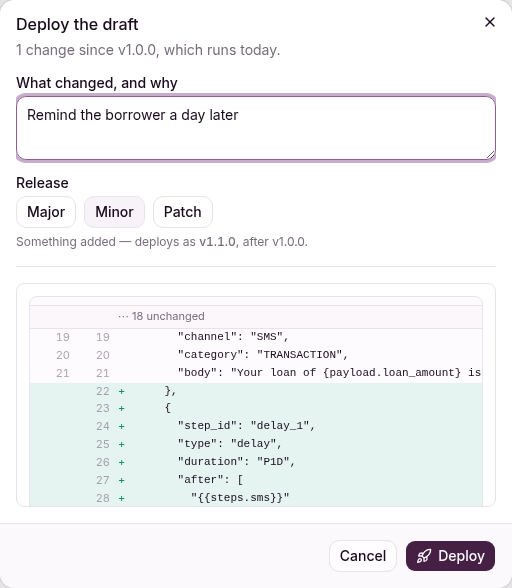
Major, Minor, and Patch set the next version number. The list shows the new Delay step.
While the delay waits, the run is Waiting. You can stop the run, for example when the borrower repays early. Open the Runs tab, open the run's menu, and select Stop this run.
Choose a message with a condition
TRANSACTION_RECEIVED_NOTIFICATION occurs when money arrives on any account. A
Condition sends a repayment message for term loan accounts and a deposit message
for the others.
- Create a workflow and link
TRANSACTION_RECEIVED_NOTIFICATION. - Add a Condition. In the first case, write
{{payload.account_type}} == "LOAN". - Add an SMS on the if branch:
We received your repayment of {payload.received_amount}. Thank you. - Add an SMS on the else branch:
{payload.received_amount} arrived. Your balance is {payload.account_balance}. - Set Category to Transaction on both SMS steps.
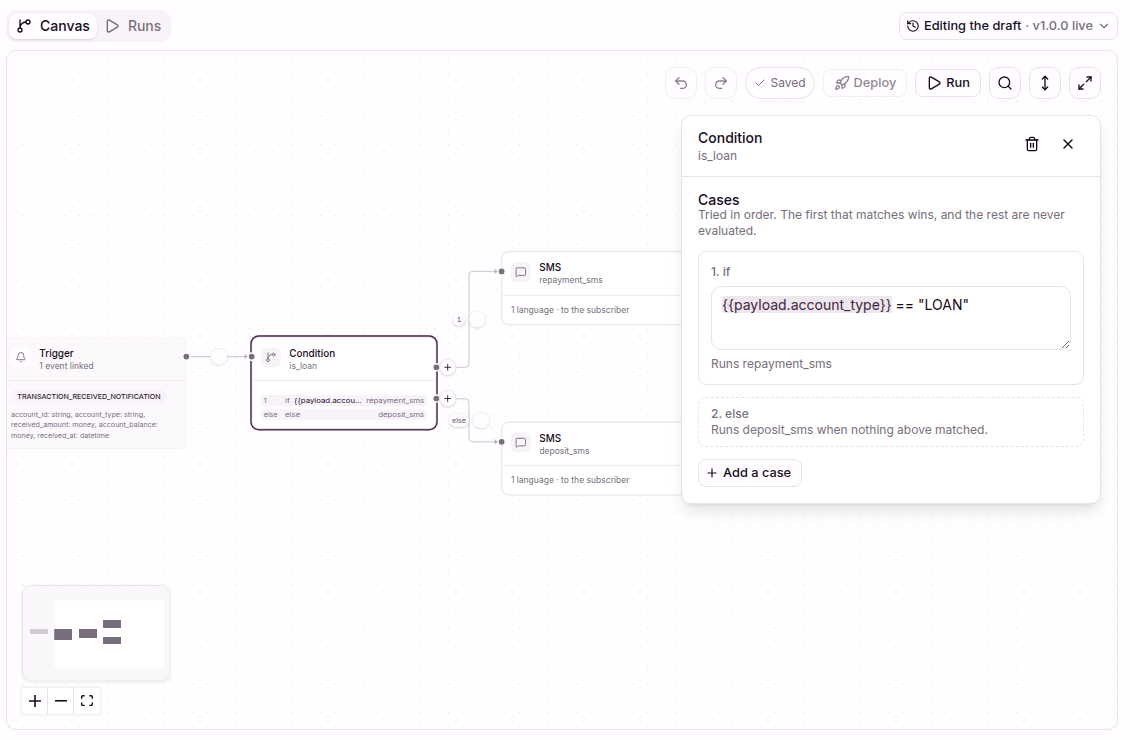
The cases run in order. The first case that is true runs. Add a case for more branches.
A condition compares with ==, !=, <, <=, >, and >=. It combines tests with
&& (and), || (or), and parentheses:
{{payload.account_type}} == "LOAN" && {{payload.is_balance_cleared}} == trueIn a run, the branch that did not run shows its steps as Skipped.
Example 3: one email for several repayments
Not live yet
This example needs the Digest step and the email repeat block, which are in review.
A borrower who pays in several parts gets one message for each payment. A Digest collects the payments, and one email lists them all.
How a digest works
- The first payment reaches the digest. Its run opens the digest and waits.
- A later payment for the same subscriber and the same digest key joins the digest. Its run stops there and sends nothing.
- When the time is up, the digest closes. The run that opened it continues once, with every payment in the digest's output.
Put steps that must run for each payment, such as a receipt SMS, before the digest.
1. Set up the digest
Create a workflow, link TRANSACTION_RECEIVED_NOTIFICATION, and add a Digest. Its
step id in this example is collect.
- When it sends: Regular.
- Collect for: 1 hour.
- Digest key:
{{payload.account_id}}. Each account then has its own digest.
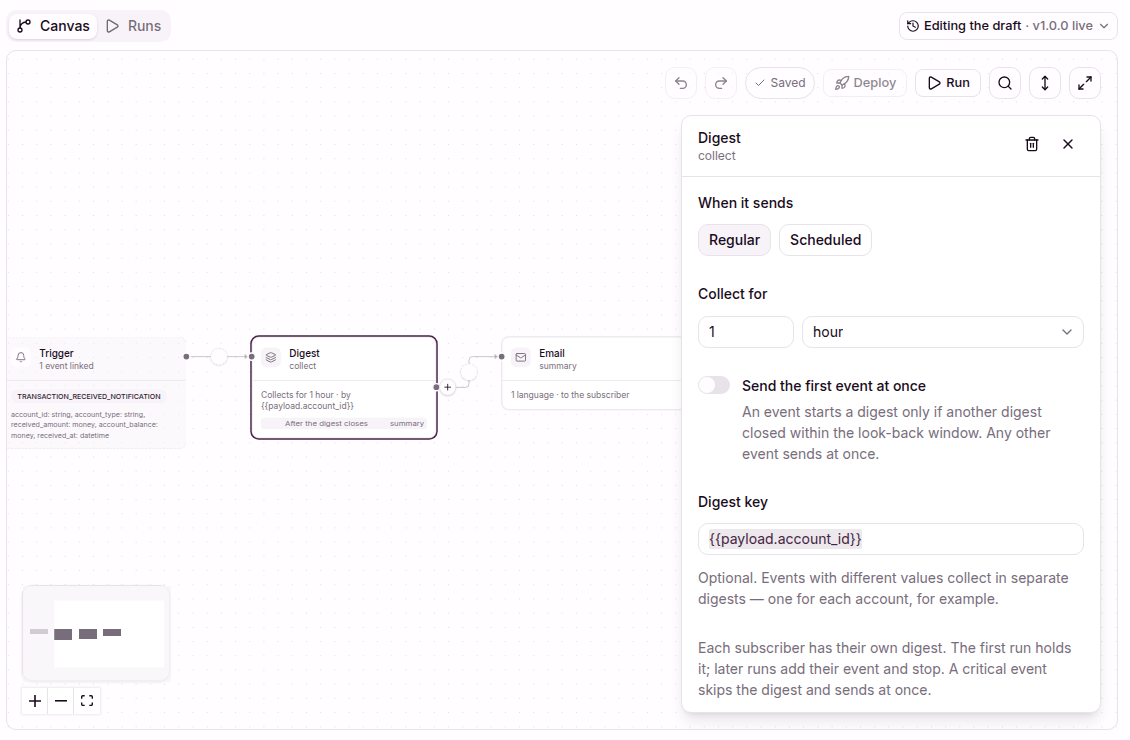
To digest repayments only, put a Condition on {{payload.account_type}} before the
digest, as in example 2.
2. List the payments in the email
Add an Email on the digest's After the digest closes branch, and set its
Category to Transaction. In the message,
select Repeat for each and pick steps.collect.output.events. The block repeats
once for each payment. Inside the block, current is one payment:
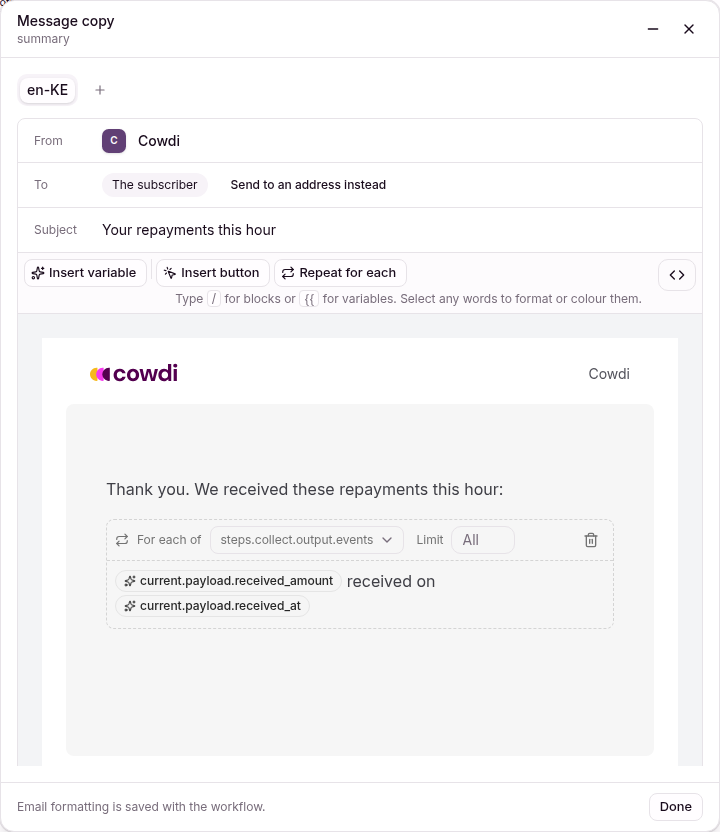
Limit sets the maximum number of items. All shows every item.
Three payments in one hour give one email. It has one line for each payment, with the amount and the time that the payment arrived.
What the digest gives the next steps
| You want | Path |
|---|---|
| How many events | steps.collect.output.event_count |
| The first or the last event | steps.collect.output.first_event.payload.received_amount, steps.collect.output.last_event.payload.received_amount |
| The sum of a money or number field | steps.collect.output.totals.received_amount |
| Every event, in an email | A Repeat for each block over steps.collect.output.events |
- The count, the first and last events, and the totals cover every event. The list holds the first 100 events.
- A money field has a total when every event has a value in the same currency.
- An SMS or a push cannot repeat, but it can use the count and the totals:
You made {steps.collect.output.event_count, plural, one {# repayment} other {# repayments}}, {steps.collect.output.totals.received_amount} in total.Other digest settings
- Scheduled closes the digest at a set time instead of after a length of time.
Send at
0 18 * * *sends one summary at 18:00, in the subscriber's timezone. - Send the first event at once sends a single event without a wait. Only a burst of events within the Look back time is collected.
- An event marked critical skips the digest and sends at once.
- If you stop the run that holds a digest, the digest closes and sends nothing.
Tips
- Test before you deploy. Select Run and pick Draft as the version. The live version does not change until you deploy.
- Open the run when a message is missing. What this step did shows each value the step read, and the reason it did not send.
- Keep an SMS short. One SMS holds 160 plain characters. An emoji or some accented letters make the limit lower. Real values replace the variables, so the message that goes out can be longer than the text you see.
- Name steps for what they do, such as
repayment_sms. Other steps use the name insteps.<name>.output.